How to Fix Pokemon Go Unable to Authenticate Error

Go to Blogger edit html and find these sentences.Now replace these sentences with your own descriptions.

Unlock Locked Android Screen Lock In Just 5 Minutes

Go to Blogger edit html and find these sentences.Now replace these sentences with your own descriptions.

How to improve Android Phone battery life

Go to Blogger edit html and find these sentences.Now replace these sentences with your own descriptions.

How To Remove Instagram Shadowban On Android

Go to Blogger edit html and find these sentences.Now replace these sentences with your own descriptions.

Simplest way to Root Your Android Phone

Go to Blogger edit html and find these sentences.Now replace these sentences with your own descriptions.

How to Fix Pokemon Go Unable to Authenticate Error


How to Fix Pokemon Go Unable to Authenticate Error

Before solving the Pokemon Go Unable to Authenticate error, let’s check out the possible sources of this problem.

What Causes Pokemon Go Unable to Authenticate Error?

There are many reasons why you’d be getting the Pokemon Go unable to authenticate error, here are a few:

1. Server Issues

One of the common causes of a Pokemon Go Unable to Authenticate error is a faulty server. Until the sever returns to normal, you will have to endure this message.


2. Your Device Does Not Support Pokemon Go
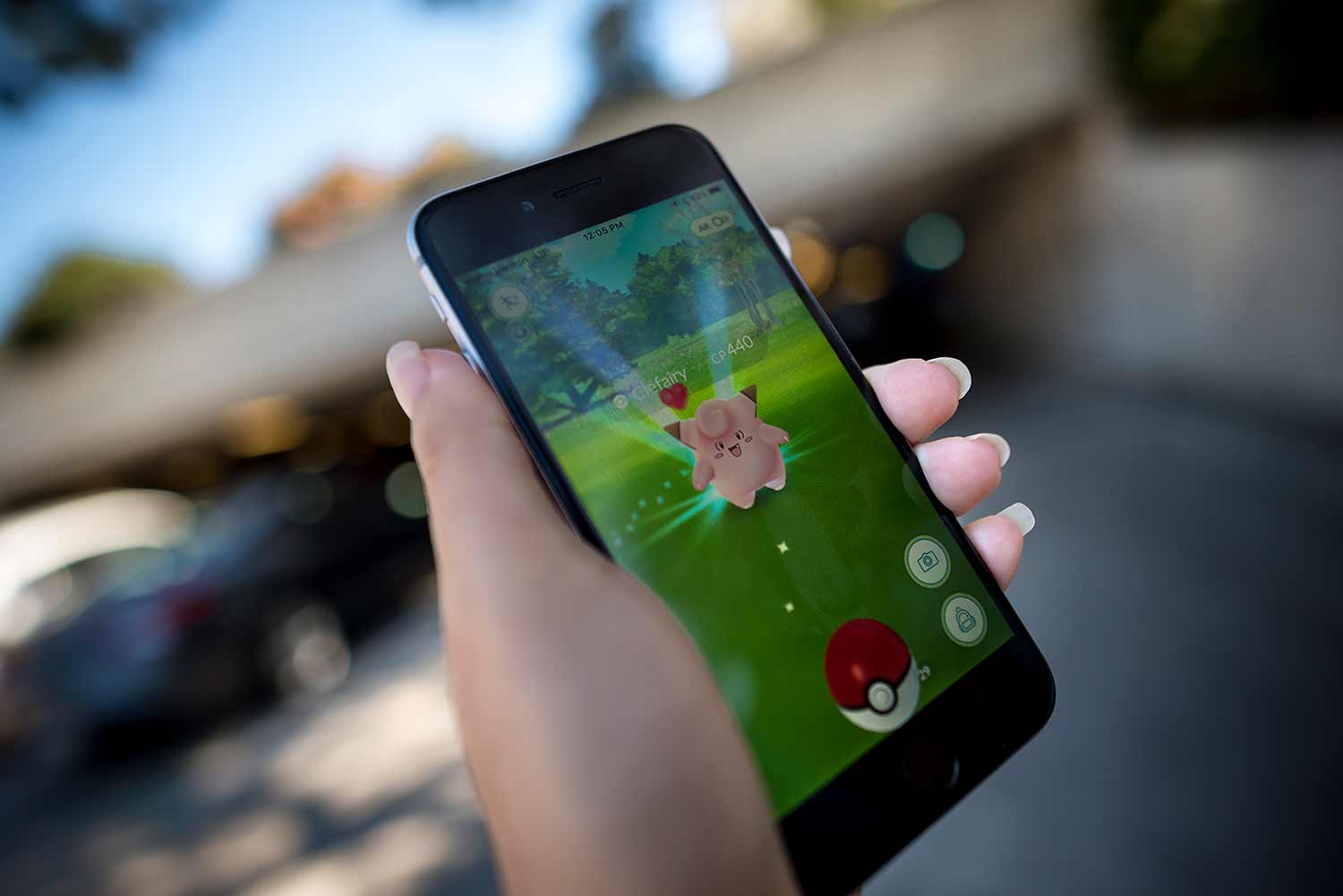
playing pokemon go

Image: Triton Magazine

Sadly, Pokemon Go does not run on all smartphones. To play Pokemon Go, you will need either an Android 4.4 device with a 720×1280 screen. You can also use an iPhone 5s or above that has iOS 9.

Besides, all devices should have a stable data connection.

3. Your Pokemon Go Account Was Banned

If you have a banned account, you will end up with an Unable to Authenticate error on your screen. Now the question comes – how can I get banned from logging into my account.


Well, you can get banned for the following reasons.

  • Using the third party software
  • Choosing the wrong location
  • Unauthorized access to the Pokemon Go Backends.

4. You Logged in With a Jailbroken/Rooted Smartphones

Pokemon Go does not work on either jailbroken or rooted devices. Even if you unroot your smartphone, you might still have a Pokemon Go  Unable to Authenticate message.

How to Fix Pokemon Go Unable to Authenticate Error

1. Close and Open the App

If you have a Pokemon Go Unable to Authenticate error, you should close and relaunch the Pokemon Go app. You can use this method for the following devices

  • Smartphone Phones with Andriod 4.4, 720×1280 pixels, GPS and a reliable data connection.
  • iPhone X or later / iPhone 8 or earlier

2. Visit the Niantic Labs Support Page

Niantic Labs is the developer of the Pokemon Go app. If opening/closing the app does not work, visit the Niantic support page. You can also use this method if you were wrongly banned from the game.


3. Use a Pokemon Trainer Club Account

pokemon go game

Image: ARS TECHNICIA

You can also solve a Pokemon Go Unable to Authenticate error by logging in with a Pokemon Trainer Club (PTC) Account. To check if you have a PTC account, use the following steps:

  • Visit Pokemon.com and tap the Log In icon
  • Type in your user name and password
  • Choose Edit Profile and select Pokémon GO Settings.
  • Read and Accept the Terms of Use

After completing the third step, you will get the following message “Great! You’re all set to play Pokémon GO. Additional settings can be changed in the Pokémon GO app.” But if you can’t find it, move on to the fourth step.

To play the game with your account, click on the New Player option, tap on the Pokémon Trainer Club, and fill in your details.


4. Uninstall and Reinstall the Pokemon Go App

Are you still getting a Pokemon Go Unable to Authenticate Error message? Then you might have to remove and reinstall the Pokemon Go App on your device.

  • Uninstall the Pokemon Go app from your Andriod/iOS device
  • Visit the Google Playstore / App Store, download and install the latest version of the game.
  • Head to the Settings option and activate the Airplane Mode
  • Open the newly installed Pokemon Go app.
  • Watch the screen as it loads and brings up the Google Sign-In Screen. Remember to ignore the ” You Do Not Have an Internet Connection” message.
  • After the screen loads completely, the prompt for signing into your Google/Facebook/Pokemon Trainer account, but don’t sign in yet.
  • Head to the Quick Setting Menu and switch off the Airplane Mode
  • Wait until the “You Do Not Have an Internet Connection” message clears from your screen.
  • Now sign in with your Google/Facebook/Pokemon Trainer Account and play the game.

5. Avoid Having Multiple Google Accounts

If you have multiple Google accounts on your device, you can end up with a Pokemon Go Unable to Authenticate error. You can avoid this issue by deleting some accounts and leave a single Google account on your device.

Share:

Unlock Locked Android Screen Lock In Just 5 Minutes


Android Unlock

Unlock PIN, Pattern, Fingerprint, Password From Android Devices

  • Unlock 4 types of screen lock: Password, PIN, Pattern and Fingerprints
  • Just remove the screen lock with no data loss
  • Everyone can easily use it, no technical knowledge is required
  • Work amazingly for Samsung and LG Android phones
  • Fully compatible with the latest Windows 10, Android 9.0 Pie

 DOWNLOAD

Unlock Locked Android Screen Lock In Just 5 Minutes!

Android Unlock tool is a special tool that has been designed to unlock android screen. If you have second hand android device in your hands and you don’t know the password or pin of the screen then you try Android Unlock tool.

With the help of this tool, you can easily unlock android screen very easily. You just need just 3 to 5 minutes to unlock android devices.

Android Unlock tool supports four types of locks to unlock them; they are PIN, pattern, fingerprint and password. No matter whatever passcode you choose, you will not lose any of the data present on your android device with the removal of lock with Android Unlock.

This tool is 100% safe and secure and so you can try it on your android device to unlock the devices. It only unlocks the locked android screen and the data saved on the device remains completely safe.

Android Unlock softwaredoes not lose any of the device’s data at any cost. And the tool offers user friendly interface and so there is no need to take any technical help to unlock android phones or tablets.

This tool is compatible with all android devices like smartphones and tablets of different brands like Sony, Samsung, HTC, ZTE, Oppo, OnePlus, Motorola, Nexus and more. Also, this tool is compatible with all android OS including Android 9.0 Pie.

Share:

Root your Android devices with just One Click for free


Simplest way to Root Your Android Phone within a Single Click

Now you don’t have to visit any professional's shop to root your android phones and tables because now you can easily do this complex process by yourself.

Android Root is the app through which any one can root their android devices even without having any professional knowledge about rooting.

We all know that the rooting is the trick to get the root level permissions on different types of Android system. After rooting you can easily modify the operating system, remove the pre-installed apps, fetch the blocked features and do more.

Android Root is the perfect way to root your android phones, it is compatible with the 7000+ Android devices having different version of android operating system.

Android Root is packed with lots of features to root your android phones easily and without affecting the android device.

Single click and your Android phone become rooted without hassle

Android Root is the tool through which any one can easily root your Android phone within less than few minutes. Connect your phone with your computer and then click on the Root Now option that’s all.

CLICK TO DOWNLOD 

root android device

Get Complete Access of your Android

After rooting your android phone using this android root software, you can get the full access of your phone. By accessing the full potential of your Android phone you can boost the performance, better battery life, and do many more tasks.


Share:

How To Remove Instagram Shadowban On Android


 If you have currently become the victim of an Instagram shadowban and want to know how to remove Instagram Shadowban issue then you are at the correct place.

In this specific post, you are going to learn everything that you should know about Instagram Shadowban.

So, without much delay, let’s get started…

What Is An Instagram Shadowban?

Shadowbanning states to block the social media content of any user without their knowledge. It means if you have shadowbanned on an Instagram then you won’t even know that you have been hit.


Moreover, your posts will not show in anyone’s news feeds on Instagram until and unless they follow you. In case, if your Instagram followers re-gram your content then those pictures will also consider shadowban.

In simple words, we can say that an Instagram shadow ban refers to a platform restricting your posts reach by limiting visibility. The main “indicator” of the shadowban is all your hashtagged posts are only appearing to your followers but not on Explore pages.

Before knowing how to remove shadowban Instagram, let’s know if you’re actually shadowbanned on Instagram or not…

How To Know If You’re Shadowbanned On Instagram?

There is no straightforward way to know if you’re shadowbanned on Instagram. But below I have stated a few tests that you can run to know if you’re shadowbanned.


1. Check Your Posts

All you need to do is to go through all your previously posted Instagram posts. And need to check whether your content is showing along with hashtags or not. If it does not then you might need to look a little deeper.

2. Review Your Insights Data On Instagram

If you are suddenly noticing an enormous drop in the impressions engagement outer of your follower then there’s a possibility you have been shadowbanned.

3. Check Your Hashtags

It is one of the easiest ways to know if you’re shadowbanned on Instagram. Yes, if you will see a message below the hashtag or caption of your Instagram post then maybe you are shadowbanned due to putting excess hashtags on your posts.


Why User Get Shadowbanned On Instagram?

As Instagram has already mentioned in their community guidelines that not to upload any sort of “sexual content” which violates their community guidelines.

Though, if you are uploading such types of content even after knowing the guidelines then you might be shadowbanned on Instagram.

Well, below we have listed some of the major scenarios that can shadowbanned you on Instagram.

  1. Posting content which is not genuinely yours (like “copied someone’s post”)
  2. Posting nudity.
  3. You are using broken or banned hashtags.
  4. Harassment, threats/hate speech.
  5. Posting the content which glorifies a violation of the law.
  6. Glorifying graphic violence or self-injury.


Way 1: Back-off From The Posting

As soon as you come to know that you are shadowbanned on Instagram firstly, you need to stop new postings for 3-5 days.

Doing this will reduce the chances to ban your Instagram account permanently. On the other hand, we can say, this method almost works as a “reset” for your Instagram account.

Way 2: Delete Hashtags From All Your Recent Instagram Posts

Once you have shadowbanned on Instagram, you have to first stop posting new content as said in the way #1. Secondly, you have to delete hashtags (#) from all your recent Instagram posts.

There is a huge chance that due to “hashtag glitch” you’re shadowbanned on Instagram. It means some of the hashtags words are actually banned or blocked by Instagram and using such inappropriate hashtags can terminate or shadowban you.

Way 3: Don’t Break The Instagram’s Rules

Before using any social media applications it has been always recommended to once go through their guidelines.


How To Remove Instagram Shadowban On Android?

If you want to know how to get rid of shadowban Instagram, apply the effective ways mentioned below:


Way 1: Back-off From The Posting

As soon as you come to know that you are shadowbanned on Instagram firstly, you need to stop new postings for 3-5 days.

Doing this will reduce the chances to ban your Instagram account permanently. On the other hand, we can say, this method almost works as a “reset” for your Instagram account.

Way 2: Delete Hashtags From All Your Recent Instagram Posts

Once you have shadowbanned on Instagram, you have to first stop posting new content as said in the way #1. Secondly, you have to delete hashtags (#) from all your recent Instagram posts.

There is a huge chance that due to “hashtag glitch” you’re shadowbanned on Instagram. It means some of the hashtags words are actually banned or blocked by Instagram and using such inappropriate hashtags can terminate or shadowban you.

Way 3: Don’t Break The Instagram’s Rules

Before using any social media applications it has been always recommended to once go through their guidelines.


Way 1: Back-off From The Posting

As soon as you come to know that you are shadowbanned on Instagram firstly, you need to stop new postings for 3-5 days.

Doing this will reduce the chances to ban your Instagram account permanently. On the other hand, we can say, this method almost works as a “reset” for your Instagram account.

Way 2: Delete Hashtags From All Your Recent Instagram Posts

Once you have shadowbanned on Instagram, you have to first stop posting new content as said in the way #1. Secondly, you have to delete hashtags (#) from all your recent Instagram posts.

There is a huge chance that due to “hashtag glitch” you’re shadowbanned on Instagram. It means some of the hashtags words are actually banned or blocked by Instagram and using such inappropriate hashtags can terminate or shadowban you.

Way 3: Don’t Break The Instagram’s Rules

Before using any social media applications it has been always recommended to once go through their guidelines.

 It is one of the simplest ways that anyone can try without any tech skills. Thus, you have to change your business profile to personal for a few days in order to see if this will assist you to eliminate yourself from Shadowbanned.


Way 7: Stop Using Instagram For A Few Days

how to remove Instagram Shadowban

Avoiding using the Instagram app is the most effective way that helped many Instagram shadowbanned victims. So, you have to also stop using your Instagram account for a few days for a fresh start!

But remember that when you’ll come back again to use your app, proceed with Instagram community guidelines.

Way 8: Contact Instagram Support

If none of the above ways worked for you to solve how to get out of being shadowbanned on Instagram then the last option left for you is to contact Instagram support.

Though is really hard of getting a reply from them. But once you can try it.


Here are the 2 ways to contact the Instagram support:

#1: Report A Problem Through Instagram App:

Reporting a problem through an Instagram app is the most recommended method. Many users have found this approach helpful in their cases. A few persons have been unbanned just after they’ve reported the problem.

Follow the below steps to report the problem to Instagram support team:

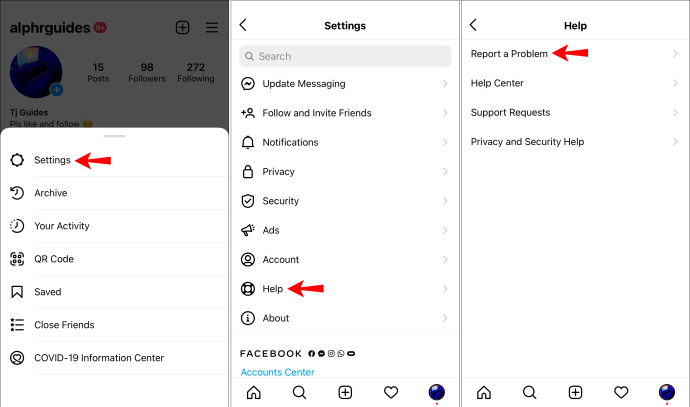
  • Firstly, open Instagram Settings
  • Choose the Help option >> “Report the Problem

Report A Problem Through Instagram App

  • Next, again choose “Report the Problem”.

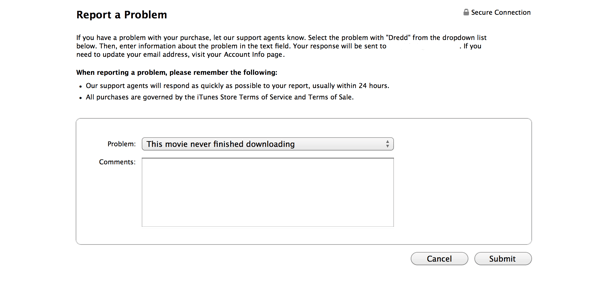
Report A Problem Through Instagram App

  • There, you have to write about the recent problem that you are getting.

#2: Report A Problem Directly To An Instagram Mail ID:

There is another effective option that can try is to contact the Instagram support team via Gmail.  All you need to do is to send the email at the mail ID- support@instagram.com.

Frequently Asked Questions:

Is An Instagram Shadowban Permanent?

The answer is no, an Instagram shadowban is not a permanent issue. As it happens due to various unknown reasons and users can easily get rid of it by applying the below mentioned tricks:

  • Stop any action which goes against the terms of a service
  • Avoid using restricted or banned hashtags
  • Evade getting reported
  • Contact to Instagram support
  • Take a break from the Instagram
  • Do not act like a bot.

How Long Does A Shadowban Last On Instagram?

A shadowban last on Instagram generally for 14 days. Hence, if you stop further action which goes against the terms of a service then you can use your Instagram account again after 14 days without any restrictions.

Why Is Instagram Shadow Banning?

The foremost reason behind the shadow banning on Instagram is using too many hashtags. If you’re using inappropriate hashtags in all of your posts to increase more visibility then it is possible that you can shadowban.

Share:

How to improve Android Phone battery life


Table of Contents

    Manually adjust display brightness
    Adjust screen timeout
    Use Dark mode on AMOLED displays
    Avoid Live wallpapers
    Disable widgets
    Turn off Bluetooth, Location and NFC
    Use Wi-Fi instead of mobile data
    Turn off Wi-Fi when not needed
    Turn off Automatic Wi-Fi
    Turn off auto-syncing of accounts
    Turn off vibrations
    Turn off Hey Google detection
    Enable Power Saver mode
    Turn off animations
    Restrict apps running in the background
    Root your Android
    Install a custom kernel
    Install custom ROM
    Use Greenify app
    Monitor misbehaving apps
    Uninstall unnecessary apps
    Switch to Lite apps
    Keep apps up to date
    Install ad-free apps
    Limit notifications
    Avoid battery optimizer apps
    Avoid graphics-heavy games
    Practice full charging
    Avoid third-party chargers
    Avoid high temperatures


Keep apps up to date

Whenever you receive a new app update on your device, don’t ignore it. Most app updates come with bug fixes and other enhancements and optimizations, some of which may be directly aimed at improving the power optimization of the app. And even if you don’t notice any improvement, you can always be sure that the update either fixed/improved something or got you a new feature.

Install ad-free apps

In case you didn’t know this already, all those advertisements you see on the apps on your phone waste a lot of battery power. While I understand ads are important to support the developers, just from a performance point of view, they are a hindrance. Not to mention the issues with privacy and bad user experience.

If you have two apps that do the same thing, one with and the other without ads, go for the latter. It will have a slight (although not very noticeable) positive effect in improving battery performance on your smartphone.

Limit notifications

Notifications are very important if you want to stay updated with all that is happening around you. But it comes at a cost. All these social media, news and special offers notifications require background services that push them. As explained before, these background services use up a lot of power. To keep it within certain limits, disable notifications that you can live without.

To do this, follow the steps below:

  1. Go to Settings.
  2. Tap on Apps and notifications.
  3. Select the app that you don’t want notifications from.
  4. On the App info screen, tap on Notifications.
  5. Disable the toggle for All <app name> notifications.

Avoid battery optimizer apps

All those funky apps that claim to kill background apps on your smartphone are junk. Trust me when I say this, they do more damage to your device than good. The apps that they kill spring back to life in no time. And when they do, it ends up draining more power than they otherwise would. Overall, these apps do practically nothing to improve the battery life of Android devices.

Android by design does a good job at handling memory, so don’t let some pathetic piece of third-party code, that often are nothing but adware, go on a killing spree on your device.

Avoid graphics-heavy games

High-end games consume a lot of battery power. This is mainly due to three reasons. One, rendering the graphics requires a lot of work to be done by the processor which translates to higher battery usage. Second, most games need to be played on near-full brightness to enhance the visuals. Lastly, serious gaming requires high-end headphones that draw power from the phone’s battery.

If you’re already facing battery performance issues on your device, I would advise avoiding playing such games.

Practice full charging

It is recommended by experts to always allow the smartphone battery to charge fully in one go. Batteries are designed for an approximate maximum number of charging cycles, each of which is said to cause minor wear. Although it is not noticeable in general use, abrupt charging of the smartphone battery can damage it in the long run. So, by charging the device completely in one go, for example from 10% to 100%, you can minimise that risk.

Avoid third-party chargers

Always charge your device with the official charger that came with it. Third-party charges may not match the power specifications on your smartphone, causing issues such as slow charging or overheating.

Avoid high temperatures

Batteries, and for that matter most electronic and electrical components are known to get damaged at temperatures higher than the designed threshold. Try to avoid exposing your smartphone to higher temperatures to save not just the battery but the device itself.


So these were the best ways to improve battery life on Android. For most users, optimising the display settings, disabling unnecessary features and restricting apps and services from over-consuming memory and data will go a long way. For advanced users, root your device and get a custom ROM and kernel. You’ll be blown away by realising all that you can do to improve the battery life of your smartphone.

If you can follow at least a few of these tried and tested tips, I can assure you of a visible improvement in your smartphone’s battery performance.

Let me know if you know of any other hacks or tips that can extend the battery life of Android devices, I’ll be eager to try them out.


Share:

Free proxy servers


Proxy by ip:port    Proxy type 
 31.3.171.65:8080    HTTP  
 1.179.148.9:55636    HTTP   
 201.71.2.110:999    HTTP   
 103.125.162.134:83    HTTP 
 45.174.87.18:999    HTTP   
 174.81.78.64:48678    HTTP   
 190.94.199.14:999    HTTP  
 152.228.163.151:80    HTTP  
 61.78.63.200:30000    HTTP  
 144.91.123.26:80    HTTP   
 54.156.145.160:8080    HTTP   
 173.82.100.189:59394    HTTP   
 103.207.1.82:8080    HTTP   
 124.131.219.94:9091    HTTP   
 176.106.122.56:8085    HTTP
 45.189.116.21:999    HTTP   
 45.189.112.225:999    HTTP   
 103.159.200.3:8080    HTTP   
 37.112.210.248:55443    HTTPS   
 61.19.145.66:8080    HTTP   
 37.255.135.18:8080    HTTP   
 210.187.176.105:8080    H
 93.145.17.218:8080    HTTP   
 125.213.235.155:8080    HTTP     
 45.32.101.24:80    HTTP   
 142.11.222.22:80    HTTP   
 157.100.53.104:999    HTTP   
 138.186.176.176:999    HTTP   

Share:

Translate

About

Powered by Blogger.

Tags

Followers

Most Popular